
Help · Students
Your event photos, step by step
Sign up once with your b00 address, then find, view and download the photos and videos of your events.
Step by step
Fill in the photo-consent form first
Only students who have filled in the association's photo-consent form (“droit à l'image”) can create an account. The link is on the sign-up page: Open the form.
The site checks it automatically when you sign up. Just filled it in? You can sign up straight away.
Create your account with your b00 address
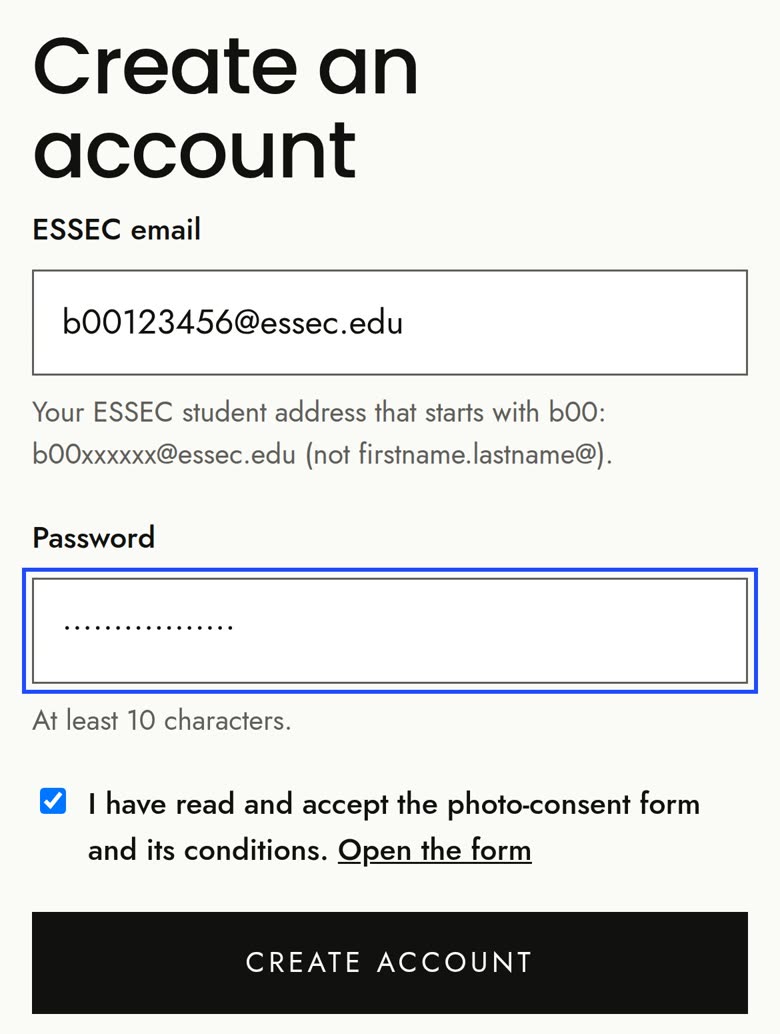
Go to Create an account. Use your ESSEC address that starts with b00: b00xxxxxx@essec.edu. Addresses like firstname.lastname@essec.edu are not accepted: your student ID is read from the b00 address.
Choose a password of at least 10 characters, tick the photo-consent box, then click Create account.
Type the 6-digit code
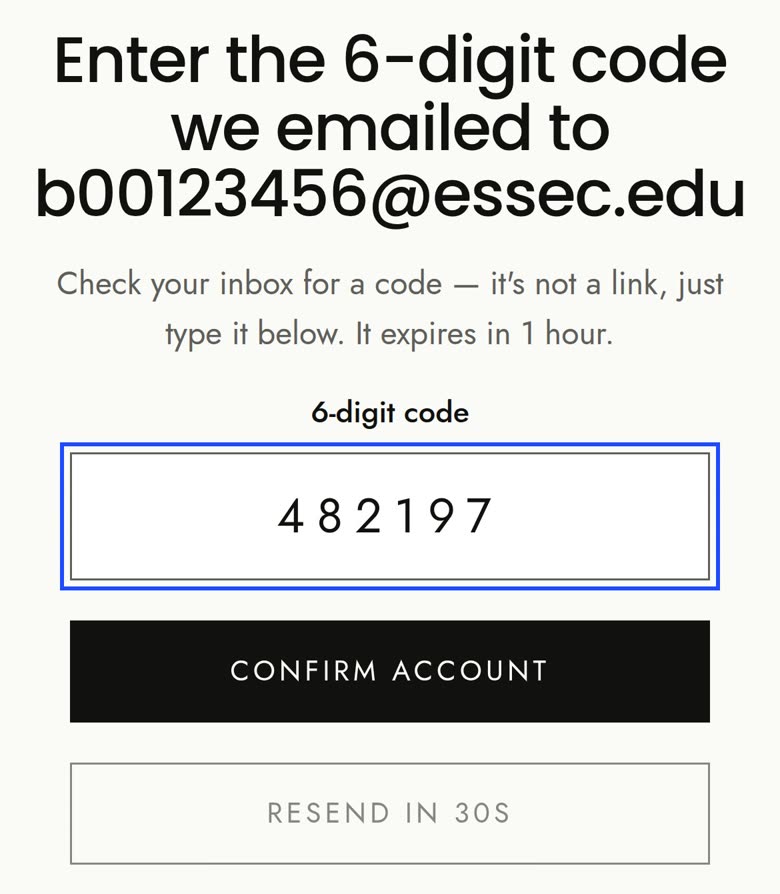
We email you a 6-digit code (it's a code, not a link: there are no links in our emails). Type it on the page and click Confirm account.
The code is valid for 1 hour. Nothing arrived? Check your junk folder, then use Resend code.
Find your events
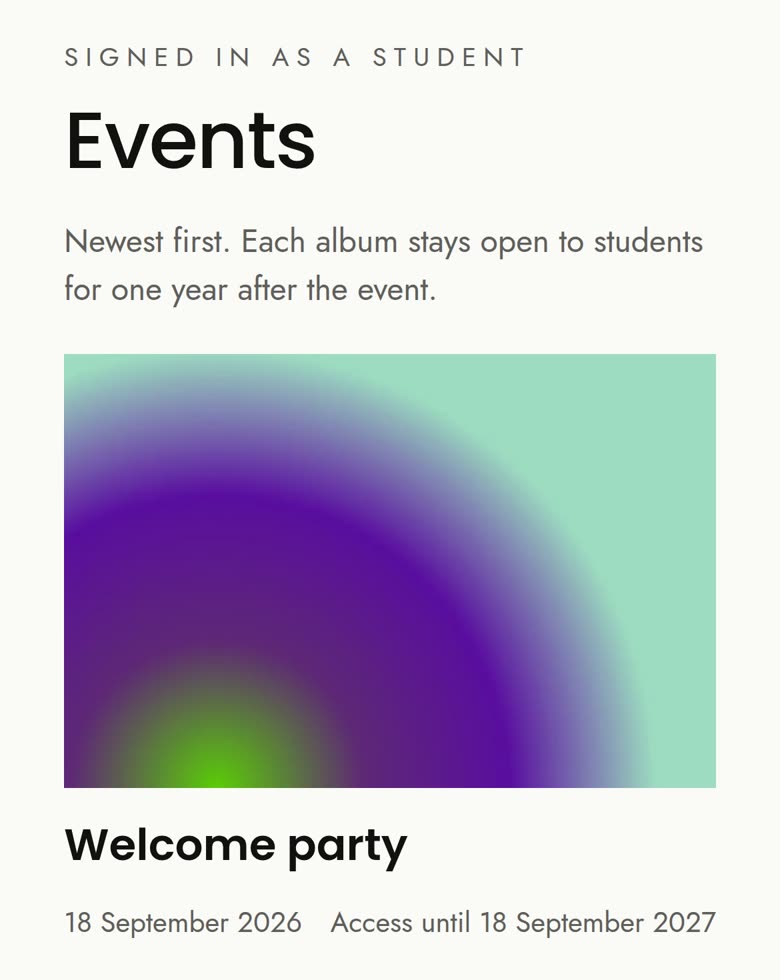
Once you're in, Events lists the events whose photos are shared with students, newest first. Each one shows until when you can access it.
Next time, just sign in on the Student tab with your ESSEC email and password.
View and download
Tap a photo to open the viewer: swipe (or use the arrow keys) to move between photos, and Download original to save it in full quality.
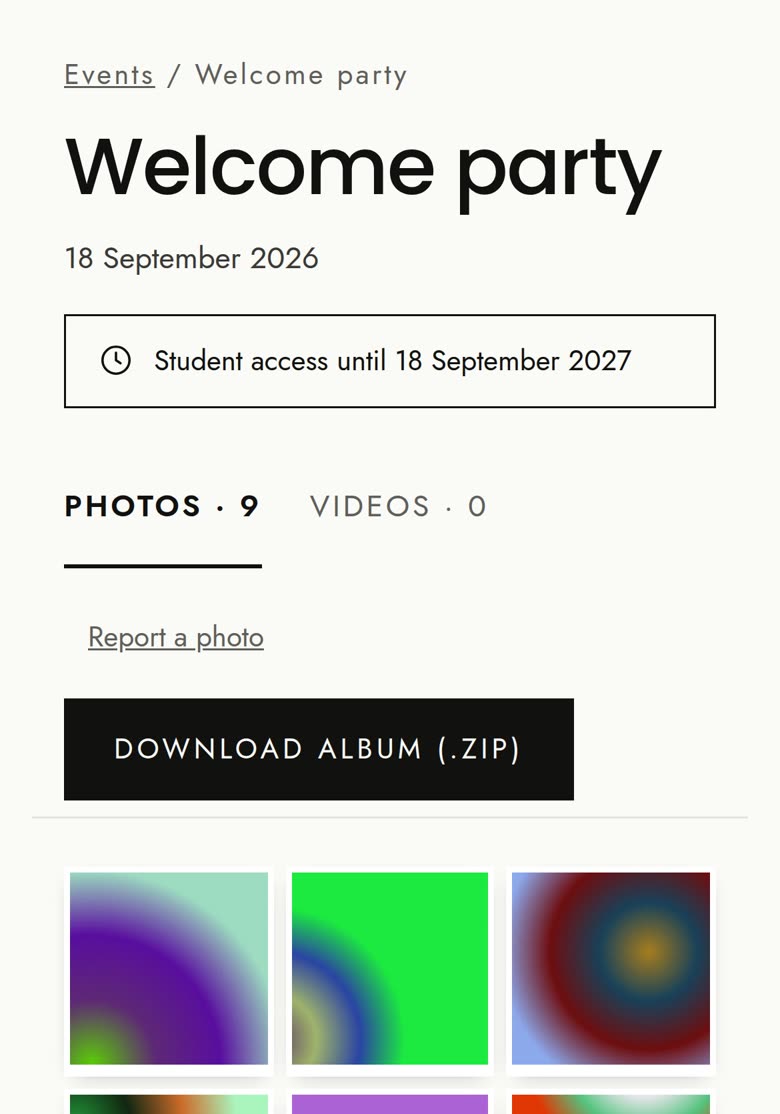
Videos are in the Videos tab, each with Download video. To get every photo at once, use Download album (.zip): big albums come in several parts of up to 50 photos.
Access lasts one year after each event
You can see and download an event's photos until one year after the event's date. After that, the event disappears from your list: save what you want to keep before then.
Want a photo of you removed?
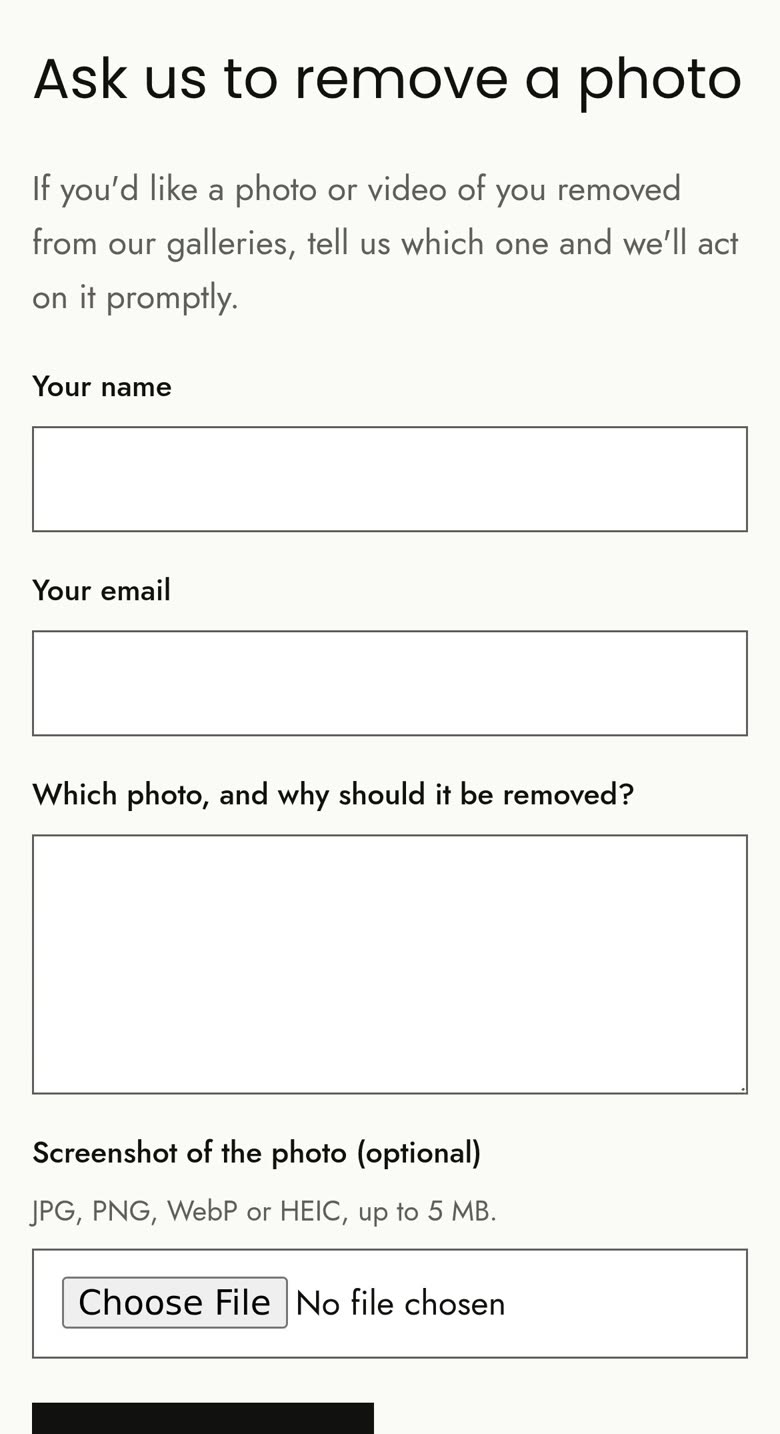
In the viewer, click Ask us to remove this photo, or use Ask us to remove a photo on the Contact page. You can attach a screenshot.
The team reviews every request and can hide the photo everywhere on the site.
Forgot your password?
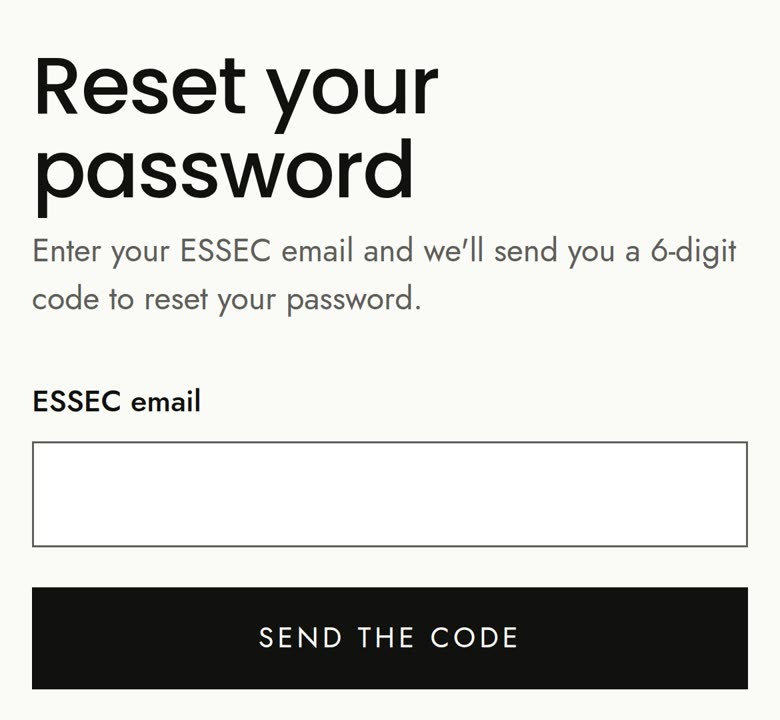
On the sign-in page, click Forgot password?, enter your ESSEC email and click Send the code. Type the 6-digit code you receive, choose a new password (at least 10 characters), and save.
Frequently asked questions
Can I sign up with firstname.lastname@essec.edu?
No. Use the address that starts with your student ID: b00xxxxxx@essec.edu. The site reads your student ID from it.
It says my student ID isn't on the photo-consent list.
Fill in the photo-consent form (link on the sign-up page), making sure your B00 is typed correctly, then try signing up again right away.
I didn't get the 6-digit code.
Check your junk or quarantine folder and wait a minute. You can ask for a new one with Resend code (after 30 seconds). A code is valid for 1 hour.
Why a code and not a link?
ESSEC's mail filter opens links in emails automatically, which could confirm an account on your behalf. A code has to be typed by you.
It says an account already exists.
You probably signed up before. Sign in, or use Forgot password? if you don't remember your password.
Why don't I see an event I was at?
An event appears once its photos for students have been published by the team, and stays for one year after the event date. If you think one is missing, write to us from the Contact page.
What happens after one year?
The event disappears from your list and its photos can no longer be opened or downloaded from your account. Download what you want to keep before.
The album downloaded in several .zip files.
That's normal: big albums are split into parts of up to 50 photos. Download every part.
Are the photos on the Portfolio page the same?
The Portfolio is a public selection that anyone can view, without downloading. Your event albums need you to sign in.
How fast is a photo removed after I ask?
The team reviews each request by hand. Once a co-president hides the photo, it disappears from every gallery on the site, including the public portfolio.
Still stuck? Write to us from the Contact page.